
The builder walks you through a new character one choice at a time and works out the numbers for you. This guide uses a D&D 5th Edition rogue as the example. Other games have different steps, but the screens work the same way.
What you need
- Nothing to start. You don't need a campaign. Characters live in your own Characters list and you can put them on a table later.
- To know which game you're playing. You pick it first, and it decides every step after it.
- Your DM's house rules, if they have any. Mostly how to do ability scores: standard array, point buy, or rolling.
The only part that uses anything is the portrait at the end of the first page, and you can skip it.
Build it
1. Go to Characters, press New character, then Start from scratch.
The box at the top of that window builds a character for you from a sentence. This guide is the other way, where you make every choice yourself.
2. Pick your game and press Start building. D&D 5th Edition, D&D 2024, Pathfinder 1e and 2e, D&D 3.5, Starfinder 2e and Daggerheart are on the list.
As soon as you press it, the character is saved as a draft. Leave whenever you like and it'll be in your Characters list where you left it.
3. Make the three core choices and give them a name.
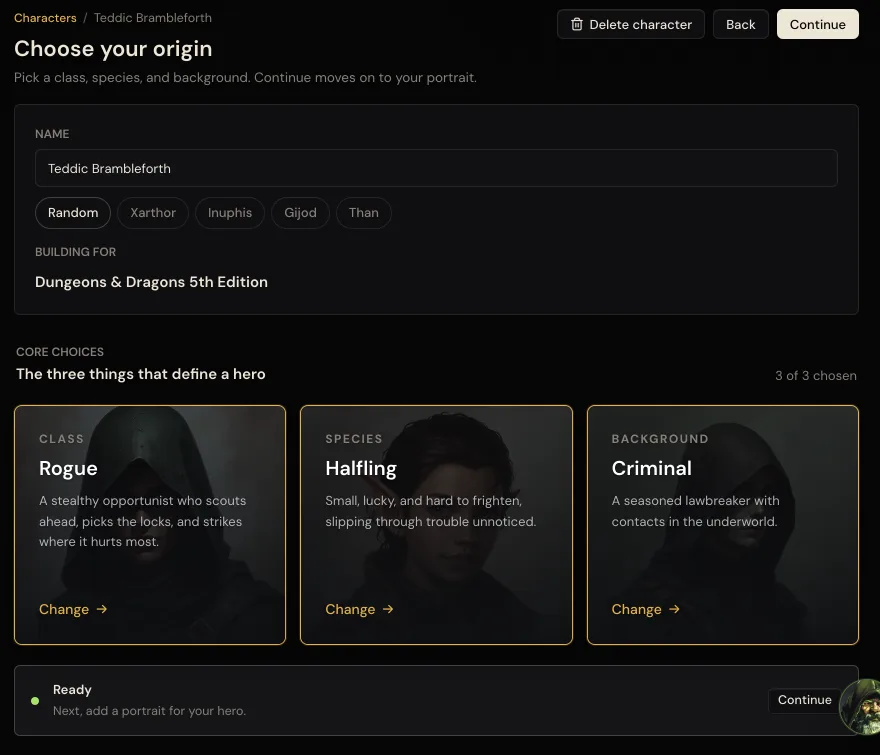
Stuck for a name? Press Random, or one of the suggestions under the box.
Press Choose a class, then Select on the one you want. Do the same for species and background. Every option has a one line description. Change any of them later with Change.
4. Press Continue. Add a portrait, or skip it.
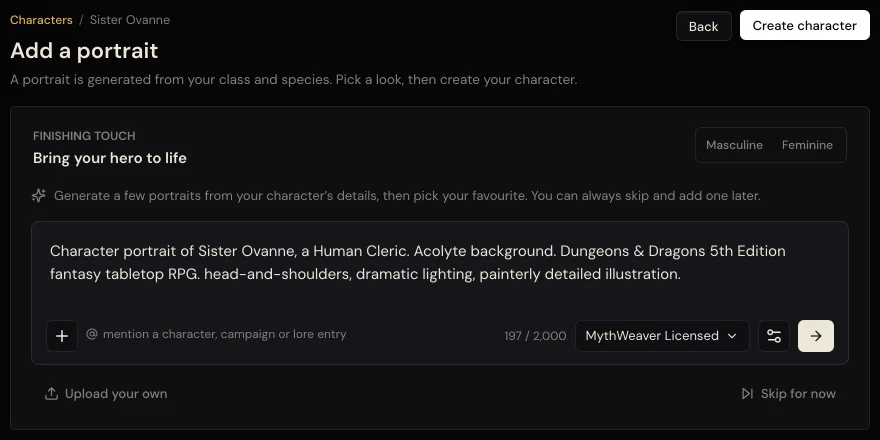
It writes a portrait prompt from what you just picked. Press the arrow to make a few and choose one. That uses pictures from your monthly images, like any other picture you make.
The prompt won't guess a look from the name. If you want the portrait to lean masculine or feminine, pick one on the Masculine and Feminine switch before you press the arrow.
Once you've picked one, press Create character. You can also Upload your own, or press Skip for now and add one from the sheet later. Either way you go on to the numbered steps.
5. Go through the numbered steps.
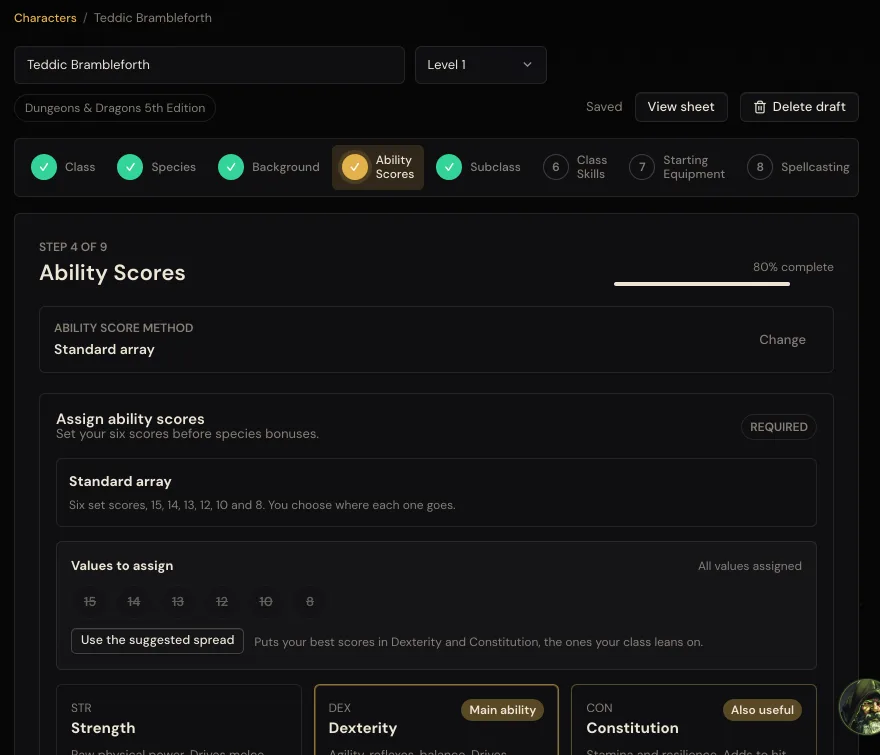
The row along the top is every step for your game. For a D&D 5e rogue that's Class, Species, Background, Ability Scores, Subclass, Class Skills, Starting Equipment, Spellcasting and Advancement. A step gets a tick when it's done. Press any step to jump to it, in any order.
Each step tells you how many picks it wants, like 0/2 or 0/4, and marks the ones that must be made as Required. A few things worth knowing:
- Ability Scores. Pick standard array, point buy, or roll your own. On the standard array, Use the suggested spread puts your best scores where your class needs them. Rolled at the table? Choose Roll your own and type in what you got.
- Skills. Anything your background already gives you is marked, so you don't spend a pick on it twice.
- Steps that don't apply. A level 1 rogue has no subclass or spells yet, so those steps are already ticked. Nothing to do there.
- Personality. The background step asks for traits, ideals, bonds and flaws. They're optional. Fill them in now or on the sheet later.
Everything saves as you go. You'll see Saved next to View sheet.
6. Press Finish. When every step is done the bar reads 100% complete and the last step says your character is ready to play.
How to tell it worked
You land on the character's sheet with everything worked out: hit points, armor class, initiative, ability scores, saving throws and skills.
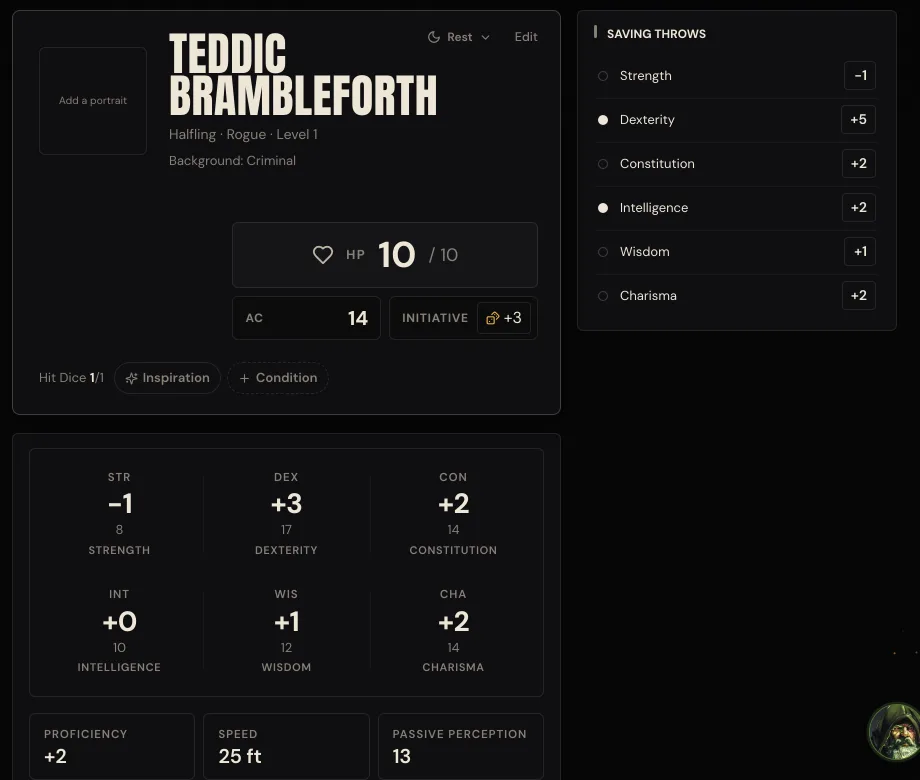
Your species bonuses are already added to the scores you picked.
If something goes wrong
You can't move on and you don't know why. Look at the step row for any step without a tick, and look for picks marked Required. A species with a required variant, like a halfling, is the one people miss most.
"The rules didn't load". Press Try again. If it keeps happening, leave and come back. Your draft is saved.
You picked the wrong game. Delete it and start again: Delete character on the first page, or Delete draft above the numbered steps. Getting back to where you were only takes a minute or two.
Next
Give them a picture. The prompt is written from the sheet you just built.