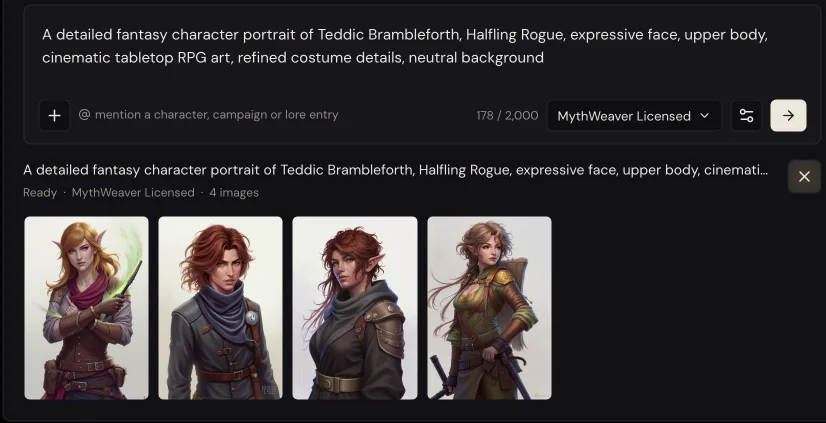
Four of these, from one press. You don't write the prompt: the app writes it from your character sheet, and you can send it as it stands.
That's the good version. The other one is pressing generate, getting four people who aren't yours, and pressing it again. Most people's next move is to go back to the words and add more of them, which is the one thing that changes the result least.
Here's the short way through, and what each go costs you.
Before you start
You need a character in MythWeaver. If you haven't made one yet, do that first, because the app writes the prompt from the sheet and an empty sheet gives you a generic person.
Generating is free to try. On the free plan you get 100 images a month. It's worth knowing how that's counted: one press of the button makes four images by default, and all four come off your total. Four isn't fixed. You can ask for anywhere from one to eight in the generation settings, and however many you ask for is how many come off your month.
You can check where you stand whenever you like. Account Settings, under Plan & Billing, has a row for Images, and it reads as a plain count of what you've used against what you get. If you run out, generating tells you so rather than failing quietly: "You've used your images for this month. They come back on the 1st."
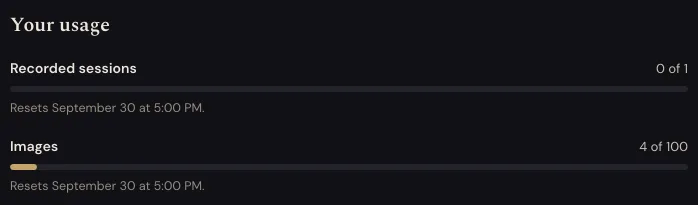
If you've been with us a while, you may also have a reserve carried over from our old pricing. It shows up in the same usage panel, and nothing comes out of it until a monthly limit runs out. Then, instead of stopping you, generating tells you what each further picture will take from your reserve and how much is left, before you press anything. Worth knowing before a long evening of rerolling, because once you're past your month's images, it's the reserve you're spending.
Generating one
1. Open the character and go to the Art tab. Everything here happens on that one tab.
2. Press Add art, then Make a picture. The menu also offers Upload a picture and From my art, which are the right answers if you already have art. This guide is for when you don't. A window called Make a picture opens on its Generate tab.
3. Read the prompt the app already wrote. This is the part people miss. The box isn't empty. It has already described your character from the sheet, something like:
A detailed fantasy character portrait of Teddic Brambleforth, Halfling Rogue, expressive face, upper body, cinematic tabletop RPG art, refined costume details, neutral background
You can change it, and later you probably should. The first time through, leave it alone. It's a better starting prompt than most people write, and you want to see what the default gives you before you start pulling levers.
You may also see a short note under the prompt with a Rewrite it for me button. That's the app offering to tidy the wording, and it never stands between you and generating. For a first go, press No thanks.
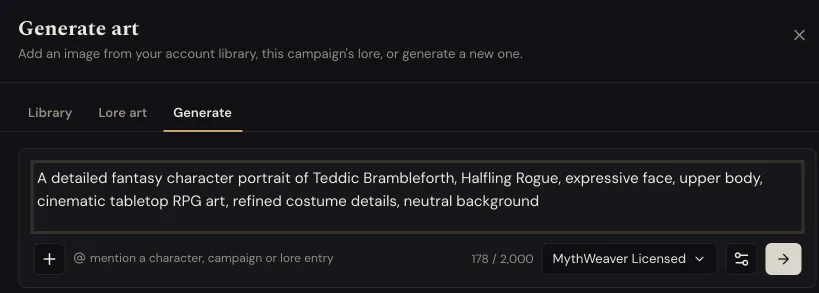
A few things in the strip under that box are worth knowing about, though you don't need any of them on your first go. The gear opens the generation settings: the shape of the picture and how many you want per press, plus, on some artists, a style to lean on and anything you'd rather it left out. The @ button tells you what mentions do. You can type @ and pick one of your characters, a campaign or a lore entry, and the app writes what it knows about them into the prompt before the artist ever sees it. And the + button lets you start from a picture you already like instead of words alone. Pictures made that way use FLUX 2 Pro or FLUX 3, which both come with the Pro plan, and the button tells you so before you pick anything.
4. Press the arrow. Four images come back together, like the ones at the top of this page. You don't have to guess how long it will take: where the app knows an artist's usual time, it's written under their name in the picker, and it tells you again while it works. The images fill in as they finish rather than all at once, and if a run goes longer than that artist usually takes, the app says so instead of leaving you watching an empty square.
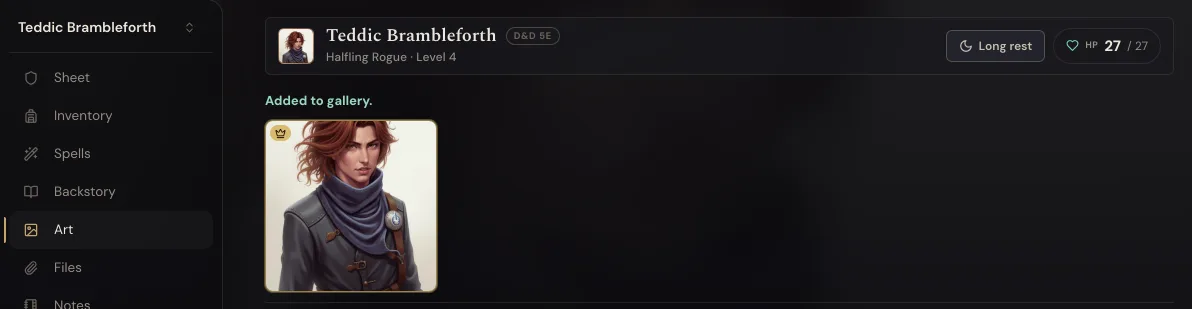
5. Click the one you want. That's the whole of it. Clicking adds it to the character's art, and if it's their first picture it becomes their image too, so you'll see it straight away next to their name. If they already have one, the new picture joins the Art tab, and its tile has a "Set as primary" button so you can make it the one.
How to tell it worked
The character's image appears beside their name at the top of every one of their tabs, and the tile in the Art tab has a small crown on it. That crown means "this is the one".
When it comes back wrong
It isn't the right species. This is the most common one and it's worth knowing before it annoys you. Ask for a halfling rogue and you'll quite often get a tall, elegant adult who is clearly not a halfling. The model reads "rogue" much more strongly than it reads "halfling". Say the thing you actually want in your own words: short, round-faced, curly hair, boots too big. Concrete physical description beats the species name.
You don't know what to change. Here's the lever nobody finds: change the artist, not the words. The dropdown in the strip under the prompt says MythWeaver Licensed, and that's one of several. CaptDiablo, Lance Lopez, Alais, Bruno Cesar Vitorino and Freya Haze are all real artists whose styles you can generate in, they are all available on the free plan, and they all get paid when you use them. Switching between them changes the image far more than another sentence of adjectives will. Try the same prompt on two artists before you try a longer prompt.
Four of the options are held back for paid plans: FLUX 1.1 Pro and Stable Diffusion 3.5 Large come with Basic, and FLUX 2 Pro and FLUX 3 come with Pro. They sit at the bottom of the list with the plan they need. They aren't better at being your character, they are just different, so don't read the lock as the answer to an image you don't like.
One of the four came back broken. It will say so, and it will tell you it didn't count against your images. That one is on us.
It says "This model wouldn't make this one." Now and then the artist you picked turns a picture down. That isn't final, and it often isn't your words. The same description can be turned down a few times in a row and then made on the next try, and a description one artist won't draw, another often will. So press the arrow again, or pick a different artist from the dropdown and try the same words there. A picture that wasn't made doesn't come off your images, so trying again costs you nothing. Only if it keeps saying no is it worth describing it differently.
It says a different artist made it. If the artist you picked is having a bad hour, MythWeaver tries them again, and if that fails too it finishes the picture with another artist and tells you: "CaptDiablo was having trouble, so we made this with MythWeaver Licensed instead." You're never charged more for that than the artist you actually chose. If you wanted that specific style, it's worth pressing generate again later rather than accepting the substitute.
Where to go next
Do the rest of your table. The prompt writes itself from each sheet, so the second and third characters take about a minute each, and a party that all came from the same artist looks like it belongs to one game.
If you have one you nearly like and want to change a single thing rather than roll again, that's the image editor. Worth knowing before you start: editing makes a new picture, in the app's own words, so it comes off the same monthly total as generating one.