
After a session, the people, places and things your table ran into show up in World. So do the notes you write yourself. This guide is for the DM: it shows where everything lands, what the two halves of each page are for, and how to make a thing from a session your own so you can add the parts your players don't know yet.
What you need
- A campaign you run. World is in every campaign's menu.
- At least one finished session, if you want to see what your sessions found. A recording or a written-up summary both work. If you haven't done one yet, here's how to get a recap from a recording.
Find what your sessions turned up
1. Open your campaign and pick World in the menu. It's under the World group, with Story, Maps and Handouts.
2. Look at the two parts of the page.
- At the top: your folders. These are your own notes, filed however you like. A new campaign has none.
- Underneath: Found in sessions. Every person, place and thing your sessions brought up that you haven't written notes for yet. Each card says how many sessions it showed up in.
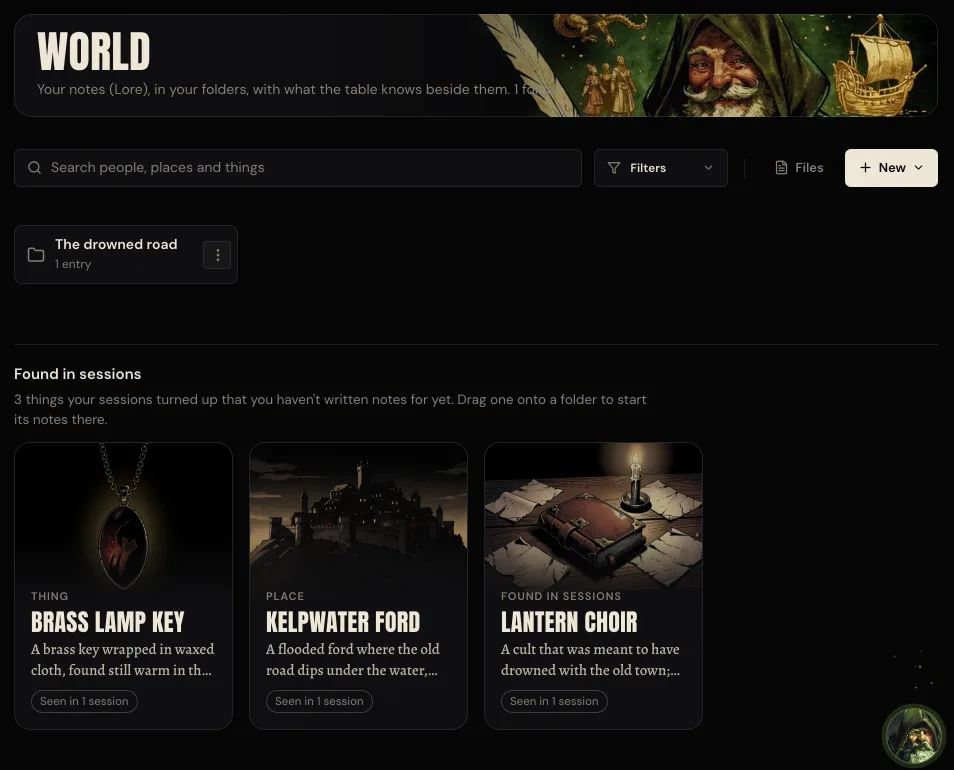
Use the search box to find things by name, whether they're in a folder or still in Found in sessions. Filters narrows the page to people, places, factions, items or creatures, or to Loose ends.
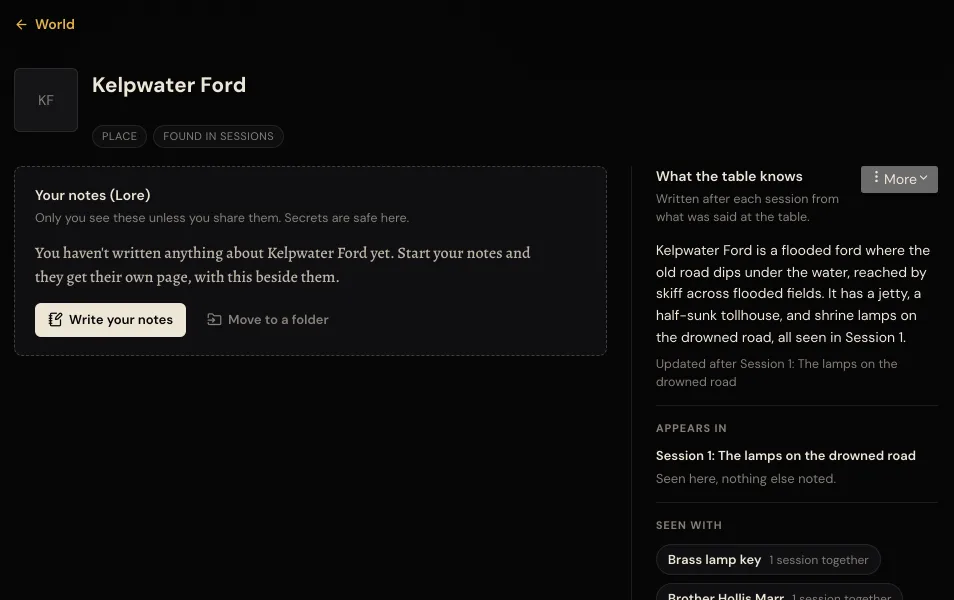
3. Press a card to open it. Every page in World has two halves.
- Your notes (Lore) on the left. Only you can see these unless you share them, so this is where secrets go.
- What the table knows on the right. It's written after each session from what was said at the table, and it updates when the thing comes up again. Under it you'll see which sessions it appeared in and what it was seen with.
Make it yours
A thing from a session stays in Found in sessions until you give it notes. You've got two ways to do that.
4. Pick where it goes.
- Move to a folder files it straight into a folder you choose. Make the folder first with New, then New folder, at the top of World.
- Write your notes gives it a page without a folder. It shows up on World next to your folders, and you can file it later.
Either way, MythWeaver starts the page for you with what your sessions said, so you're never starting from a blank page.
5. Add what only you know. Type into the notes. They save as you go, and the page says Saved.
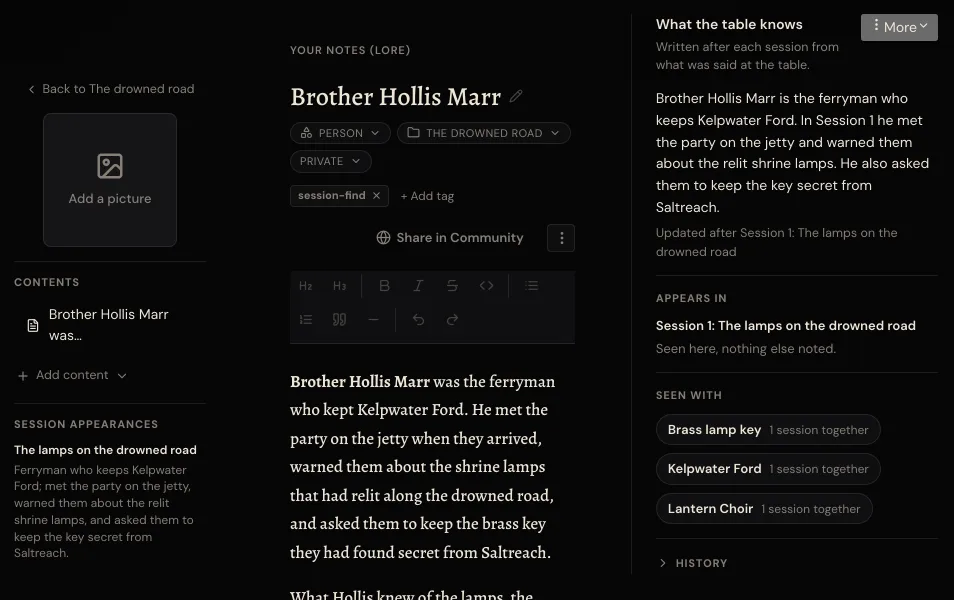
The Private chip means only you can see it. Press it if you want to share the page with your players or with everyone in the campaign.
How to tell it worked
Go back to World. The thing has left Found in sessions, and your folder now counts one more entry. Open it again and your notes are on the left with what the table knows still beside them. The next time it comes up in a session, the right half updates. Your notes only change when you change them.
If something goes wrong
Found in sessions isn't there. It shows up once a session has finished. If your session's page still says Reading your session, give it a few minutes, then come back to World.
You wrote notes and now you can't find them. Search for it by name. If you used Write your notes instead of Move to a folder, the page is sitting on World next to your folders rather than inside one. Open it and use the chip under its name that says Unfiled to put it in a folder.
You're worried your players can see a secret. Check the chip under the page's name. If it says anything other than Private, press it and set it back to Private.
Next
Bring your players in so they can follow the story with you.