
The easiest recap to get is the one for a game you recorded. You don't need a recorder, an app on your phone or a Discord bot. MythWeaver records in the browser tab you already have open, keeps going while you look things up during the game, and when you stop it, it hands the audio on for the recap.
Two things worth knowing before you sit down. The tab has to stay open. You can go anywhere inside MythWeaver while it records, but closing the tab or refreshing the page stops it. It doesn't lose what it already has, it just stops listening. And it asks who played before it writes anything, so it isn't done until you answer that.
Before you start
You need a campaign, and a recent Chrome, Edge or Firefox on the computer that will sit at the table. Put it somewhere it can hear everyone: the middle of the table beats the end of it.
If you play online, you'll want the computer you're on the call with, so it can hear the people on the call as well as you.
Get your players into the campaign with their characters first if you can. Here's how to invite them. Then the recap can use your party's names instead of guessing at them.
On the free plan you get one recorded session a month, and this is it. Trying it out first? Delete that test session afterwards and you get your one session back.
Recording the game
1. Open the campaign, go to Sessions, and press New session. If the campaign doesn't have any sessions yet, the button says Record a session instead.
2. Press Record tonight. On a paid plan, Record tonight starts a live session where Weavy listens along. If you only want the recording, press Record without Weavy under it instead. Either way, this guide is the plain recording.
The recorder doesn't open in the middle of the page. It opens at the bottom left, from the strip of icons down the left edge, between search and the bell. On a phone, it lives in the top bar.
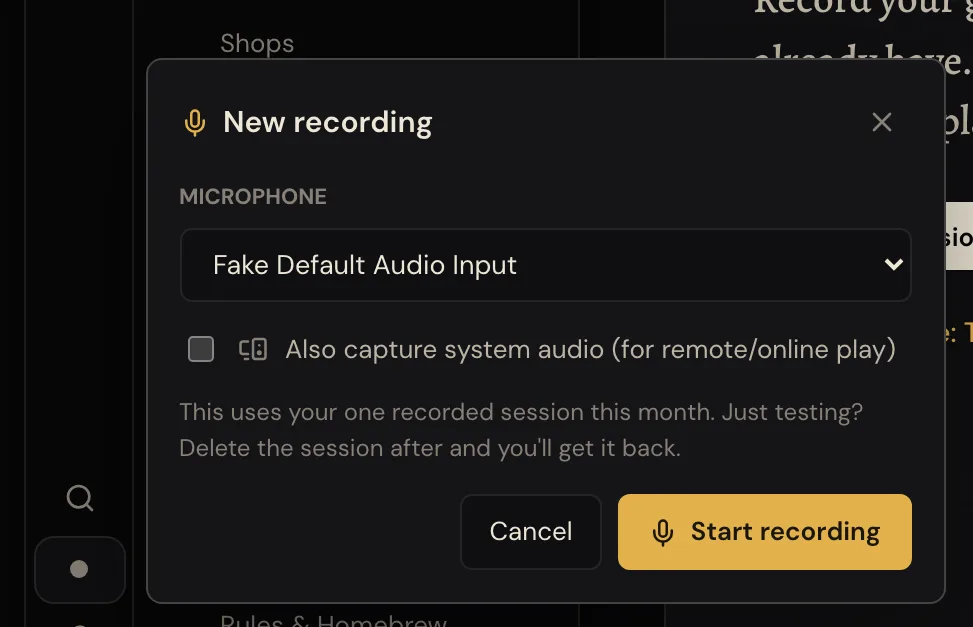
3. Pick your microphone, and tick Also capture system audio if you're playing online. Without that box, it only hears the room, so the players on the call won't be in the recap. With it ticked, your browser asks what to share when you start. In Chrome or Edge, pick the tab or window your call is in and switch on sharing its audio. If you don't switch that on, it only hears your microphone, and the people on the call won't be in the recap.
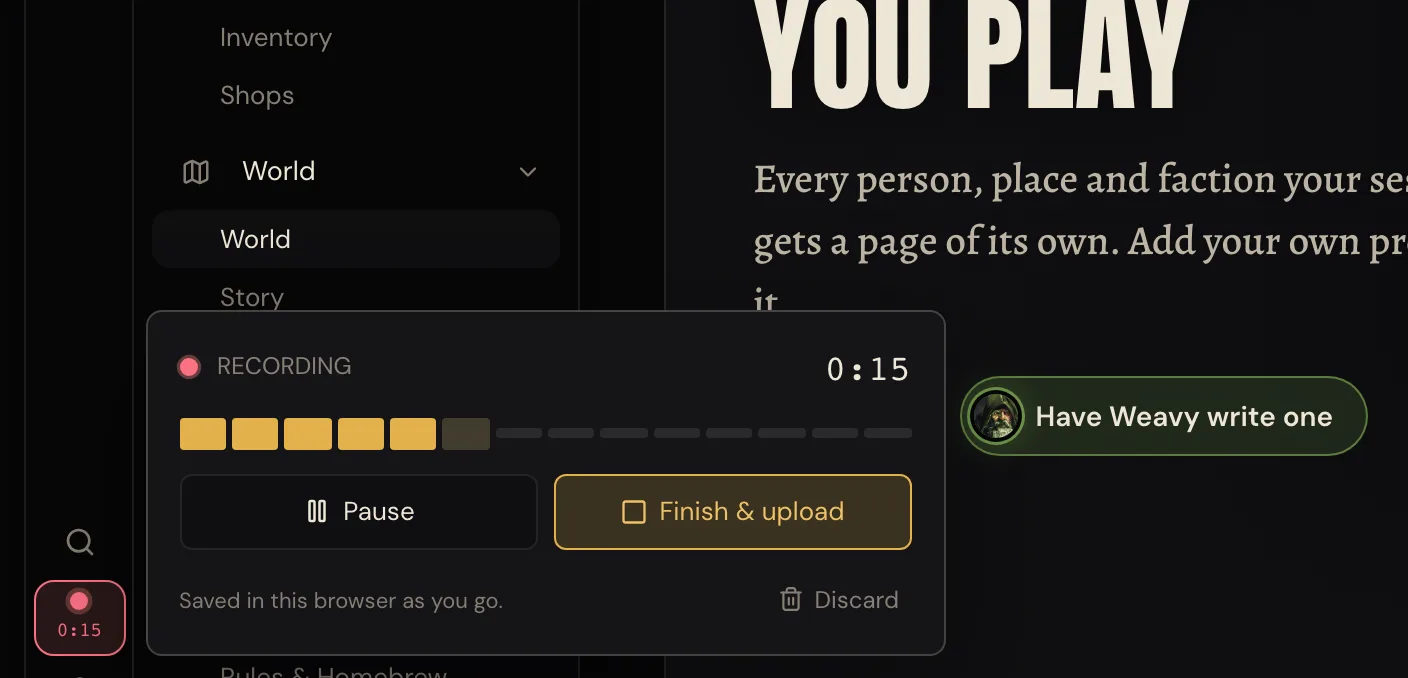
4. Press Start recording when you start playing. The first time, your browser asks whether MythWeaver can use your microphone. Say yes. The panel closes and a red button at the bottom left shows the time counting up. That's the recorder.
5. Play. You can go anywhere in MythWeaver while it records: look up a character, check World, open your plan. The red button keeps counting wherever you go. Press it to open the recorder again. Pause stops it for a break and Resume carries on. It says "Saved in this browser as you go": every half minute or so it keeps a copy of what it's heard on this computer, which matters if something goes wrong (see below).
6. When the game's done, press Finish & upload. It uploads, which takes a moment for a long night, then says Session saved with "One step left: tell us who played, then we'll write the recap." Press Say who played.
7. Answer who was at the table, then who's who. From here it's the same as an upload. The recording guide picks it up at the roster step and walks you through to the finished recap.
How to tell it worked
After Finish & upload, the recorder says Session saved, and Say who played takes you to the new session on its Who was at the table? screen. Once you've answered that and who's who, a draft recap turns up on that session a few minutes later. Nobody else sees it until you publish it.
If something goes wrong
You closed the tab, or the computer died. If you try to close or refresh the tab while it records, your browser asks whether you want to leave first, so say no. If it closed anyway, open MythWeaver again on the same computer and the same browser. The recorder says Unfinished recording recovered, with the campaign it's from and how long it is. Press Upload to send what it got, or Discard if you don't want it. You lose up to the last half minute before it closed, and anything after, but not the rest of the night.
It says Upload failed. Your recording is still saved on this computer. Press Retry. If it keeps failing, try again later: discarding it deletes the only copy. Until it's sent, the recording choice in New session says Upload waiting instead of starting a new one, and pressing it opens this recording again so you can retry. If the page reloads before it's sent, it comes back as Unfinished recording recovered, the same as a closed tab above. Press Upload.
It hears you but not the people on the call. That's Also capture system audio, which you can only set before you press Start recording. For tonight, whatever it got is still worth uploading. Next time, tick the box first.
It stopped on its own. It stops at 10 hours, and before the file gets too big to upload, and saves what it has. If your game ran longer than that, you've got a long one.
Next
Get the recap out of it: who was at the table, who's who, and publishing it.
Nobody hit record? You can still get a recap by writing up what happened.